Show a Timer in the Mac Menu Bar: Why the Countdown Keeps Disappearing
You put a timer in the menu bar so you would not have to go looking for it. Then you opened a video in full screen, or swiped to another desktop, or added one more icon on a MacBook with a notch, and the countdown was gone. Not stopped, gone from view, which for a timer amounts to the same thing.
The search results are App Store cards and feature requests, and none of them says that a menu bar countdown disappears in three different ways, for three different reasons, and that macOS has a menu bar setting for exactly one of them.
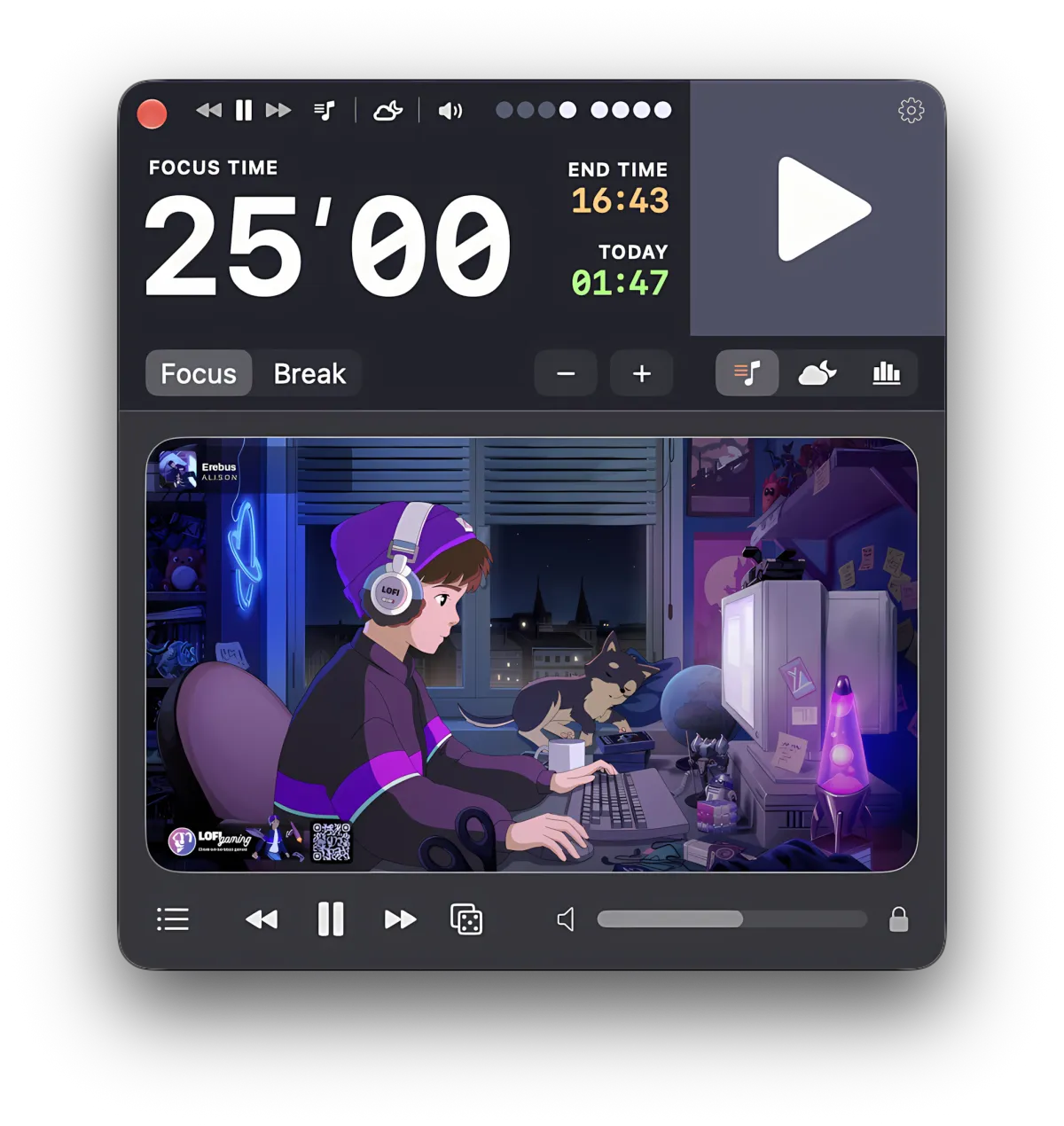
Focusito is a pomodoro timer for the Mac that counts down in the menu bar, with seconds, on every Space. The page below is about the menu bar itself: why a countdown vanishes there, what you can change, and what no timer app can change for you.
A menu bar timer disappears for one of three reasons: the app in front is full screen, the MacBook's notch has swallowed it, or you are looking at a window and not the menu bar. Only the first has a menu bar setting. Set the menu bar to never hide and it stays on screen in full-screen apps too.
The notch has no menu bar setting. On a MacBook with a camera cutout, every item that does not fit beside it slides underneath and is gone until you remove something else. On an external display the bar is whole again.
If what you actually need is a bell in twenty-five minutes, the Mac has that built in. The Clock app and Siri both set timers, and so does one line in Terminal.

A countdown that is one glance away while you work. Focusito draws the time left in the menu bar, minutes and seconds, refreshed every second, and it is there on every Space. One keystroke brings the timer window up and the same keystroke puts it away again, so you never go looking for it.
It lives in the same menu bar as everything else, so the same rules apply: in a full-screen app it is visible only once you set the bar to never hide, and on a notched MacBook it can slide under the camera along with any other item. After the trial, the live digits in the menu bar and Dock are part of the one-time purchase; the icon itself stays.
Full-screen apps hide the whole menu bar
The most common way to lose a menu bar timer has nothing to do with the timer. Click the green button on any window and macOS takes the menu bar away along with the Dock. Everything in it goes: the clock, the Wi-Fi icon, your timer. The app in front gets the full height of the screen, which is the point of the mode.
Apple describes the default plainly: move the pointer to the top of the screen and the bar slides back down; move it away and the bar leaves again. Fine for checking the time once, useless for a countdown you wanted in the corner of your eye.
There is one switch, and Apple names it in the same article: “If you want the menu bar to always be visible in full screen, you can change the setting ‘Automatically hide and show the menu bar’ to Never.” The setting has four values, and their descriptions on the macOS 15 settings page read:
- Always: “Always hide and show the menu bar.”
- On Desktop Only: “Hide and show the menu bar when not using an app in full screen.”
- In Full Screen Only: “Hide and show the menu bar when using an app in full screen.”
- Never: “Never hide the menu bar.”
In Full Screen Only is what most people are living with. Never is the one you want for a timer.
Check it on your own Mac, it takes a minute. Open System Settings. On current macOS the option sits in the Menu Bar pane in the sidebar; on macOS 14 and 15 it is near the bottom of Control Center, and on macOS 13 it is in Desktop & Dock. Set it to Never, put any app into full screen, and the menu bar stays where it was, countdown included. The cost is a strip of screen at the top of every full-screen window, which is the trade you are making.
On a MacBook with a notch, the right-hand items slide under it
On a MacBook with a camera cutout, the menu bar is split in two by the housing. App menus run on the left; status items, which is what a menu bar timer is, run on the right. The right-hand half has a fixed amount of room.
When you have more items than the room holds, the ones furthest from the right edge go under the notch. There is no warning, no overflow arrow, and no “more” button. The item is still running, drawn in a place you cannot see. The Apple Stack Exchange question “How to prevent MacBook Pro notch from hiding menu bar icons,” asked in July 2022, had been read more than 84,000 times by the time this page was written. Apple’s one documented workaround is a checkbox in an app’s Get Info window, “Scale to fit below built-in camera,” which draws everything on that Space below the camera while the app runs; apps already updated for the camera area do not offer it.
Check it yourself in under a minute. Add menu bar icons one app at a time and watch the row from the right. Close one and a hidden item reappears. The bar is a queue, and the notch is the end of it.
What you can do about it, honestly:
- Fewer items. On current macOS, Menu Bar settings switch off system items and, under “Allow in the Menu Bar,” other apps’ items; on macOS 13 through 15, Control Center settings do it for system items.
- A menu bar manager. Third-party utilities that fold items into a hidden section exist precisely because of this, at the price of another app.
- An external display. No notch, so the bar runs the full width. A countdown hidden on the laptop screen is visible on the monitor beside it.
No timer app can draw itself on top of the notch. A product page that promises an always-visible countdown on a MacBook was written at a desk with a monitor.
Spaces: the item follows you, the window does not
The third disappearance is a misreading, and it is the one with good news. macOS draws the menu bar on every desktop Space, so swipe left or right and the countdown is still in the corner. That is the reason to put a timer in the menu bar in the first place.
The timer’s window is a different object. It belongs to the Space you opened it on, and swiping away leaves it there.
The exception is a Space that holds another app in full screen. That Space has no menu bar unless you set it to never hide, so the item is gone there along with everything else. Set the switch above and the item is on that Space too.
Check it. Start any countdown with a menu bar readout and swipe to a second desktop. The item is there; the window is not. Swipe into a full-screen app and the item is gone with the bar, unless you already changed the setting.
If all you need is a bell, the Mac already has one
Before installing anything: macOS can set a timer on its own, and for a lot of people that is the whole job.
The Clock app. Apple’s steps are four lines long: open Clock, click Timers at the top of the window (or choose View, then Timers), set the amount of time, click Start. Apple adds that the timer “continues even if you open another app or if your Mac goes to sleep,” and that “when a timer ends, you get a notification.” Apple’s article mentions no menu bar countdown; the time left is in the Clock window.
Siri. Apple’s own example is “Set a pizza timer for 12 minutes.” Say it, and the Clock app runs it. Same limits.
One line in Terminal. This works on any Mac, including ones older than macOS Ventura, which introduced the Clock app, and needs nothing installed:
sleep 1500; say doneThat waits 1,500 seconds, twenty-five minutes, then speaks the word. Change the number for a different length, or the word for a different message. Close the Terminal window and the timer is gone, which is the only caveat. There is no countdown to look at: it is a bell, not a clock.
If a bell is enough, stop here. The rest is for people who wanted to see the number.
What about the Dock icon
Some timers can draw the countdown on their Dock icon as well as in the menu bar. It is a real option with one weakness that puts it below the menu bar, not beside it.
The Dock hides in full screen too, and Apple’s full-screen article offers no switch for it the way it does for the menu bar; the instruction is to move the pointer to the Dock’s edge of the screen, and it slides out. So a Dock countdown is a backup channel for the desktop, not a fix for full screen. Its one advantage is that the Dock has no notch: an icon there is never swallowed.
Check it. Put any app in full screen. The Dock is gone until the pointer reaches its edge.
What Focusito puts in the menu bar
Focusito is a pomodoro timer, so the number in the menu bar is the time left in the current focus session or break. It is drawn as minutes and seconds and changes every second, which is the difference between a clock you glance at and a number you read. Click the item and the timer window comes up over whatever you are doing; click again and it goes away. A keyboard shortcut you can change toggles the same window.
The item is on every Space, because the menu bar is. When a session ends, Focusito rings with its own sound and brings its window up without taking the keyboard away from what you were typing.
If you do want the mechanical version: the icon’s home is set in Settings, under General, in a box called Timer Icon. Location offers Menubar, Dock, or Both. Below it, “Countdown in the Menu Bar” is on out of the box and “Countdown in the Dock” is off, because two ticking icons is more than most people want on day one. The settings note says the quiet part itself: a ticking icon redraws once a second, which costs a little battery. The readout is a template image, so it takes the color of your menu bar in light and dark mode. The window can also be kept on top of everything else with one toggle, for when a corner of the screen is not enough. And the LoFi player and background sounds that run alongside the timer have their own page.
The limit is the one this page is about, and Focusito does not get around it: its countdown lives in the same menu bar as everyone else’s. In a full-screen app it is visible only when the bar is set to never hide, or while the pointer is at the top of the screen, and on a notched MacBook it goes under the camera like any other item once the row is full. After the free trial, the live digits in the menu bar and on the Dock icon need the full version; the plain icon, and the timer behind it, keep working either way.
Common questions
Why does my menu bar timer disappear when an app goes full screen?
Because macOS hides the whole menu bar in full screen by default, and the timer is one item in that bar. Moving the pointer to the top brings it back for a moment. To keep it, open System Settings, find "Automatically hide and show the menu bar" (in the Menu Bar pane on current macOS, in Control Center on macOS 14 and 15, in Desktop & Dock on macOS 13), and set it to Never.
Why are my menu bar icons hidden behind the notch on a MacBook?
The menu bar on a notched MacBook has two halves, and the right-hand half only has so much room. When the items you have added outnumber the space, the overflow slides under the notch without warning. Apple's one documented workaround is a per-app Get Info checkbox, Scale to fit below built-in camera, and not every app offers it. Otherwise: fewer items, a menu bar manager, or an external display, where the bar runs the full width without a gap.
Does a menu bar timer show on every Space?
Yes, and that is the one place a menu bar timer beats a window. The menu bar is drawn on every desktop Space, so an item in it is visible wherever you are. The timer's window lives on the Space where you opened it, and swiping away leaves it behind. The exception is a Space holding a full-screen app, where the menu bar itself is hidden unless you set it to never hide.
Is there a built-in timer app on a Mac?
Yes. The Clock app that ships with macOS has a Timers tab: set a length, click Start, and a notification arrives when it ends. Siri works too, with a phrase like "Set a timer for 25 minutes." Apple's timer article promises a notification, not a menu bar readout; the time left is always in the Clock window. If you need only the signal, Terminal does it on any Mac: sleep 1500; say done waits 25 minutes, then speaks the word.
Does Focusito show seconds in the menu bar?
Yes. Once a session is running, the menu bar item redraws once a second with minutes and seconds left, in the Mac's monospaced system font. It is on by default and can be turned off in Settings, under General, in the Timer Icon box. The Dock icon can carry the same countdown, but that one is off by default: two ticking icons at once is more than most people want.