A Pomodoro App With Stats on a Mac: Why a Counter Is Not a Record
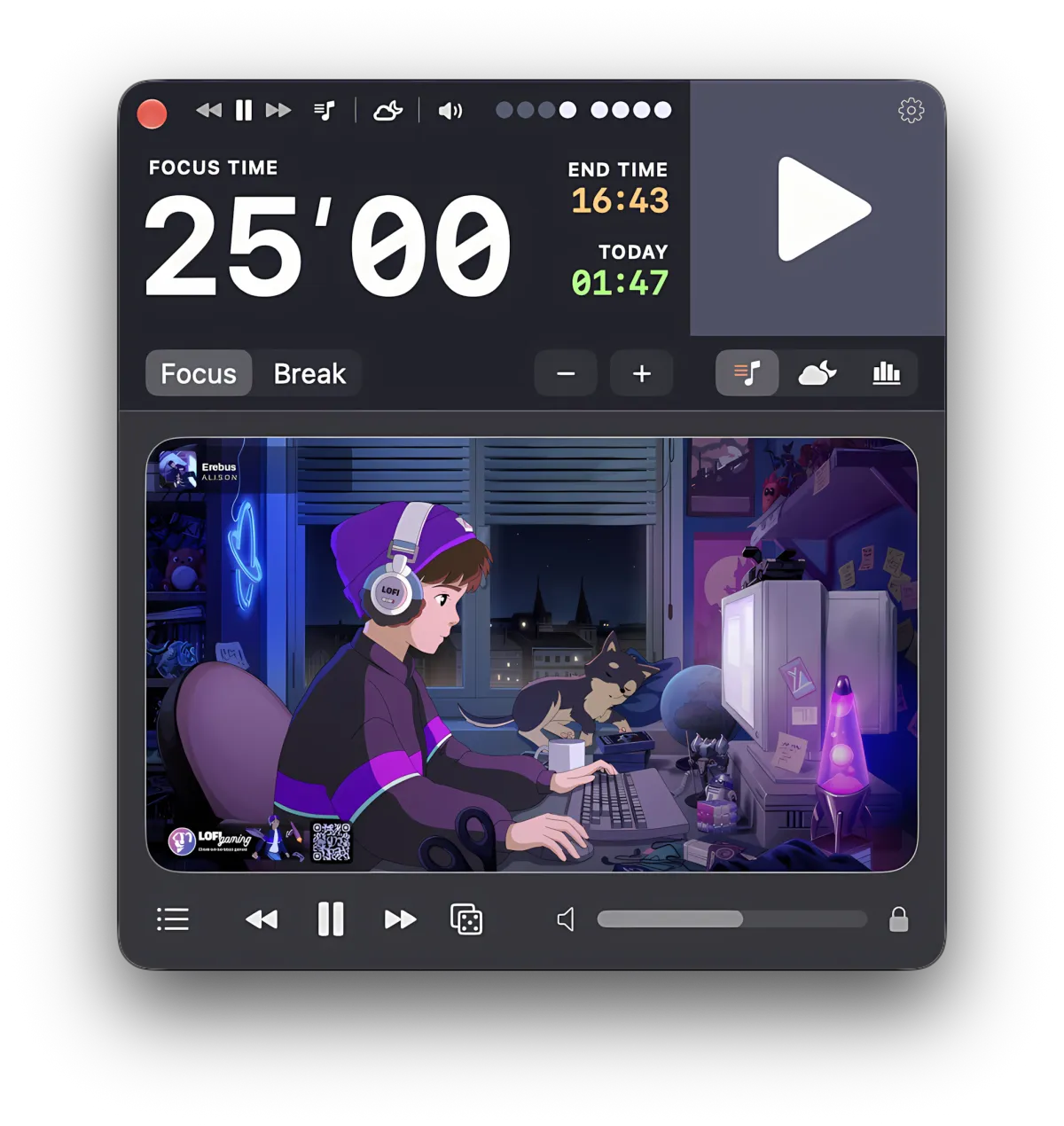
You want a pomodoro app with stats because the counter you have is not telling you anything. Four tomatoes today, six yesterday, and no way to know whether two of yesterday’s six were eleven minutes long. The checkmark records that a session happened. It does not record what happened.
That is the gap between a counter and a tracker, and it is what people are really asking when they search for “pomodoro timer with history” or “deep work log”: not how many, but how long, against what plan, and where the rest of the week went.
Focusito is a Mac timer that writes every session down with its planned and real length and exports the log as a CSV whose columns are listed below, so you can check the schema against a file of your own. The page below is the log itself: what a counter loses, what a log needs, how a paper sheet compares, and a one-minute Numbers recipe for any CSV.
A pomodoro counter stores a checkmark; a tracker stores the planned length and the real length as two separate numbers, and everything useful lives in the gap between them. A session cut short at twelve minutes and a session that ran forty are the same tomato to a counter and two different facts to a log.
If you already have a timer that exports a table, you do not need a new app for the statistics. Open the file in Numbers, build a pivot table with one row per week, and put real minutes next to planned minutes. That table answers "where did the week go" better than any score.
If your timer stores only a count, the fix is a timer that records length, not a spreadsheet you fill in by hand afterwards. Hand-filled sheets are good at estimates and bad at honest durations.

Tired of a counter that cannot tell a 12-minute session from a 40-minute one? Focusito writes each session down with its planned and real length, the reason it stopped, and the project it belonged to, shows the day as a rhythm strip and the last 7, 30, or 90 days as daily totals, and exports the log as JSON or CSV.
It does not read a CSV back in (only its own JSON imports, by merging), it has no tasks, no "how many pomodoros will this take" estimates, and no interruption marks, the sync is between Macs only, and after the trial today's sessions and every day's summary stay open while past days' session lists and the 7, 30, and 90-day bars are locked until the one-time purchase.
A checkmark loses the two numbers you came for
Most pomodoro apps keep a tally. A session ends, a tomato appears, and the day’s row in the history says “6”. That number is honest about one thing only: six sessions reached the end of their timer. It says nothing about the one you stopped at minute nine because a call came in, or the one you kept running forty minutes past the bell because you were finally moving.
Those two are the sessions you were going to learn something from: the short one tells you when the day broke, the long one what your real block length is.
A log keeps both because it stores two durations per session: the length you set, and the length it ran. The planned number is a decision; the real number is a measurement. Side by side over a week, three patterns surface on their own: days where real falls short of planned (something kept interrupting), days where real runs long (your plan is too short for the work), and days with many starts and few finishes.
Check it on the counter you have. Open its history for a day you remember as bad. If the row shows a count and nothing else, the app cannot tell you whether that day was three sessions of nine minutes or three full ones with nothing in between.
What a session log needs, column by column
The way to judge any pomodoro tracker, app or sheet, is to look at what one row stores. Here is the row Focusito writes, which is also the header line of its CSV export, so you can open an export of your own and compare:
date,start,end,type,planned_min,active_min,status,stop_reason,project,timezone,legacyEach column answers a question a tally cannot:
| Column | What it answers |
|---|---|
date | which day the session belongs to, in the time zone you were in when it started |
start, end | when exactly, as timestamps with the offset of that zone |
type | focus or break |
planned_min | the length you set, in minutes to one decimal |
active_min | the length it ran, paused time excluded |
status | completed, shortened, or cancelled |
stop_reason | manual, auto, app_closed, or reset |
project | the project’s name, empty for Free Flow |
timezone | the zone identifier the session was started in |
legacy | true for records migrated from older versions, which have no planned length |
Two of these do more work than they look like they do. planned_min and active_min are separate columns, which is what makes “over plan” and “under plan” computable per session, per day, and per project without re-typing anything. And timezone travels with the row: start and end are written in the zone the session happened in, so a session started in Kyiv still reads as Kyiv time when you open the file in Lisbon.
A few rows from an export look like this:
2026-10-06,2026-10-06T09:02:14+03:00,2026-10-06T09:27:14+03:00,focus,25.0,25.0,completed,manual,Thesis,Europe/Kyiv,false
2026-10-06,2026-10-06T09:27:40+03:00,2026-10-06T09:32:41+03:00,break,5.0,5.0,completed,manual,Thesis,Europe/Kyiv,false
2026-10-06,2026-10-06T09:33:05+03:00,2026-10-06T09:45:22+03:00,focus,25.0,12.3,shortened,manual,Thesis,Europe/Kyiv,false
2026-10-06,2026-10-06T11:10:00+03:00,2026-10-06T11:41:30+03:00,focus,25.0,31.5,completed,manual,,Europe/Kyiv,false
2026-10-06,2026-10-06T14:02:11+03:00,2026-10-06T14:02:52+03:00,focus,25.0,0.7,cancelled,reset,Thesis,Europe/Kyiv,false
Row three is the interrupted one: twelve minutes against a plan of twenty-five, stopped by hand. Row four ran six and a half minutes past the bell, which a counter would have recorded as one tomato, identical to row one. Row five is a false start, and the next section is about why it does not count.
Why a 40-second false start does not ruin the week
A log that stored every press of the start button would be worse than a counter: thirty “sessions” of under a minute a week, every cancelled start and every restart. A tracker needs a rule for what counts, and the rule should be stated, not hidden.
Focusito’s rule is one minute. A focus or break session shorter than 1:00 is stored with the status cancelled and left out of every total: not in the day’s minutes, not in the session count, not in the 30-day bars. From one minute up to the planned length it is shortened, and it counts, with its real length. Reaching the plan makes it completed, however far past the bell you ran. Pressing Restart always closes the current session as cancelled, whatever its length.
The status is decided once, when the session closes, and nothing recomputes it later, so the week you looked at on Friday is the week you see in a month.
Check it yourself. Start a focus session, stop it after forty seconds, and look at the day’s list. The row is there, marked cancelled, and the day’s total did not move. Export the CSV and the same row carries cancelled in the status column and 0.7 in active_min. The record exists; it is the arithmetic that ignores it.
If what you actually want to know is what a sensible daily count looks like, that is a separate question about how many pomodoros fit in a day, and the answer there is arithmetic, not a target.
A paper tracking sheet versus a log
Before apps, the method ran on paper, and the sheets people still download as “pomodoro tracker template” or rebuild in Excel and Notion descend from that: today’s tasks, an estimate in pomodoros next to each, an X for every session finished, and a small mark for every interruption.
Paper is genuinely better at two of those. Estimating is a thinking step, and writing “3” next to a task before you start is the part that teaches you how long things take; an app that only records what happened cannot make you guess first. Interruption marks tally something the timer cannot see, because an interruption that does not stop the clock leaves no trace in it.
Paper is worse at the thing this page is about. A sheet records that a session finished, not how long it ran, unless you write the minutes in by hand every time, and nobody does that past day three. The sheet and the counter app fail in the same place: both store a checkmark.
So use each for what it does. Keep the sheet, or the Notion page, for estimates and interruption marks. Let the timer keep the durations, because it is the only thing in the room that measured them. Focusito does the second half only: it has no tasks, no estimates, and no interruption marks, and if those are the point of your tracking, a sheet beside it is the right tool.
From a CSV to a week in Numbers, in one minute
This works with any timer that exports a table with a date column and a minutes column. The field names below are Focusito’s; swap in yours.
- Export the CSV. In Focusito that is Settings, Statistics, the Backup box, Export, then choose CSV.
- Open the file in Numbers. It arrives as a sheet with one row per session.
- Select the table, then in the menu bar choose Organize, Create Pivot Table, On New Sheet.
- In the Pivot Options tab of the Organize sidebar, tick
date,active_min, andplanned_min. Make suredatesits under Rows and the two minute columns under Values, dragging them there if they landed elsewhere; if a value is not summarized as a sum, change it under Summarize by. - Click the edit button next to the
daterow field, open Group by, and pick the period you want. If the periods on offer do not include what you need, add a column to the source table with=WEEKNUM(A2)filled down and use that as the row field.
You now have one row per period with real minutes beside planned minutes. Add status under Columns and the table splits into completed, shortened, and cancelled; put project under Rows above date and you have hours per project per week.
Two details about the file. It is UTF-8 with a byte-order mark and CRLF line endings, so Excel on Windows reads non-Latin project names correctly. And a project name that starts with =, +, -, or @ is written with a leading apostrophe so a spreadsheet does not run it as a formula; if a project of yours shows up with that apostrophe, that is why.
Reading 7, 30, and 90 days without a score
Once you have the numbers, something has to show them, and the usual answer is a score: a focus index, a streak with a flame. Scores hide the two numbers again, one level up.
Focusito shows the numbers at three zoom levels instead. The day is a list of sessions, newest first, each as “planned → real” with the difference beside it, plus a rhythm strip of when you worked and rested. Above that, daily totals for the last 7, 30, or 90 days as one bar per day with an average line.
The average is where honest numbers quietly go wrong, so: it runs from the first day in the period that has a session, which means a 30-day view on day twelve of using the app averages twelve days, not thirty. Empty days after you started count against you; empty days before you started do not. The period opens at 7 days and switches itself to 30 once your history spans a week, once, and never again after you have picked a period yourself.
Projects are a flat label on a session: one name, one color, no sub-tasks. A break takes the project of the focus session before it, and “Free Flow” is the state of having no project at all. Click a project chip and every card on the page is filtered to it.
The app never says what a good number is. If the week is 9 hours of focus, it shows 9 hours; what to make of that is yours, and if the method itself keeps not working for you, that is a different page.
What Focusito writes down
Everything above is doable with any timer that exports a real table and twenty minutes in Numbers, and if yours does, you are done.
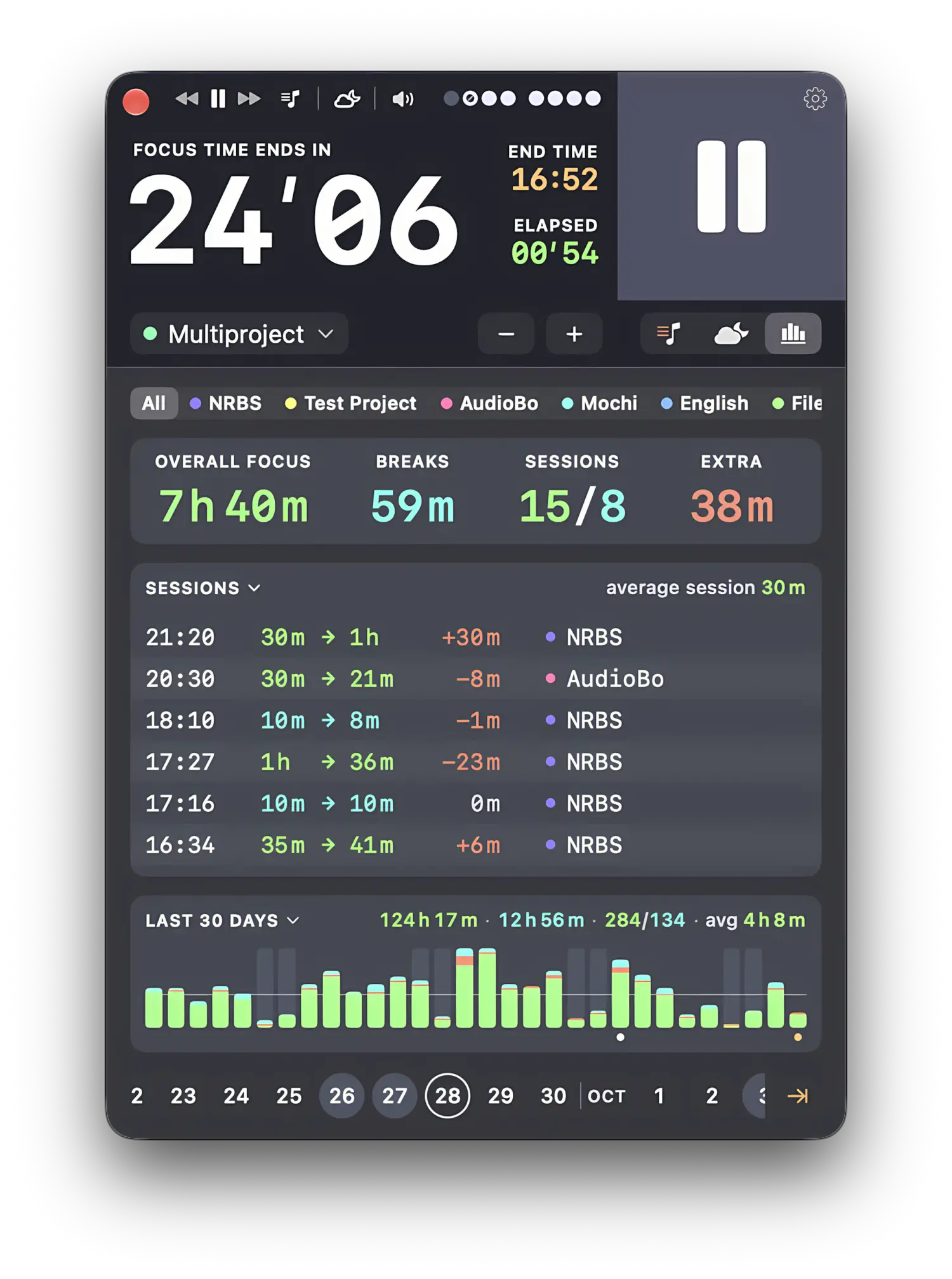
What Focusito removes is the part where you remember to write things down. Every session goes into the log on its own, with the length you set, the length it ran, how it ended, and the project; the day is a list and a rhythm strip under the timer, the month is bars, nothing is a score. And the log is yours to take: JSON for a full copy, CSV for Numbers, Excel, or an AI assistant with the column list above pasted alongside.
If you do want the mechanical version: the CSV is a flat view of the log, the eleven columns listed above, one row per session ordered by start time, minutes to one decimal. The JSON export is the full database and imports back on any Mac by merging: sessions you do not have are added, a newer version of a session in the file updates yours, a session deleted there is removed, the import dialog counts all three before you confirm, and a copy of the current data is saved before the merge. Between your own Macs you do not need the file at all: with the toggle in Settings, Statistics, iCloud switched on (it is on by default), settings, projects, and the log sync through your iCloud account, each Mac’s sessions are added together, and a deletion on one Mac removes the session everywhere.
The limit, once more because it decides whether this page helped: CSV does not import back, there are no tasks, estimates, or interruption marks, the sync is between Macs with no phone app, and once the trial is over today’s list, today’s rhythm strip, and any day’s summary stay open while past days’ lists and rhythm strips and the 7, 30, and 90-day bars are locked until you buy the app.
Common questions
What is the difference between a pomodoro counter and a pomodoro tracker?
A counter stores one bit per session: it happened. A tracker stores how long it was supposed to run and how long it actually ran, as two separate numbers. The difference shows up the moment a session is cut short or runs past the bell. Four checkmarks can mean 100 minutes of focus or 41, and only a log with planned and real length side by side can tell you which.
What columns should a pomodoro tracking log have?
At minimum: the date, start and end times, whether it was focus or a break, the planned length, the real length, and a status such as completed, shortened, or cancelled. A stop reason and a project label let you answer why a session ended and where the week went. Focusito's CSV export carries all of those, plus the session's time zone and a flag for records migrated from older versions: eleven columns in all.
Can I use a pomodoro tracker template in Excel or Numbers instead of an app?
Yes, and for estimating and marking interruptions a sheet is better than most apps. What a sheet cannot do is record real length without you typing it after every session. The practical split is: let a timer write the log, then open its CSV in Numbers or Excel and build a pivot table with one row per week and the sum of real minutes against the sum of planned minutes.
What counts as a pomodoro in Focusito's statistics?
Any focus or break session that ran at least one minute, unless Reset or Restart ended it. Under a minute it is stored as cancelled and left out of every total, which is why a false start does not dent the week. From one minute up to the planned length it is stored as shortened, and reaching the plan makes it completed. The status is written once, when the session closes, so history never shifts later.
Does Focusito import a CSV back?
No. CSV is a one-way export for Numbers, Excel, or an AI assistant. The round trip runs through JSON: export JSON on one Mac, import it on another, and the sessions are merged into what is already there rather than replacing it. Between your own Macs you do not need either file, because the log syncs through your iCloud account when the sync toggle is on.
Does Focusito sync pomodoro statistics to iPhone?
No. Focusito is a Mac app, and the sync is between Macs signed into the same iCloud account. Settings, projects, and the session log travel; each Mac contributes its own sessions and they are added together, and a session deleted on one Mac disappears from the others. There is no phone app and no web view of the log.